ruOS · agentic desktop

A desktop that runs itself.

ruOS is your own agentic desktop, with smart AI built in that does the work for you — research, writing, code, and more. Open it in any web browser, on any device. Nothing to install.

✓ Works in any browser ✓ Saves your work ✓ Resizes to your screen

ruOS Lite — a browser desktop in seconds

free

No machine to wait for: a real Chrome browser drawn as your ruOS desktop, right in your web page.

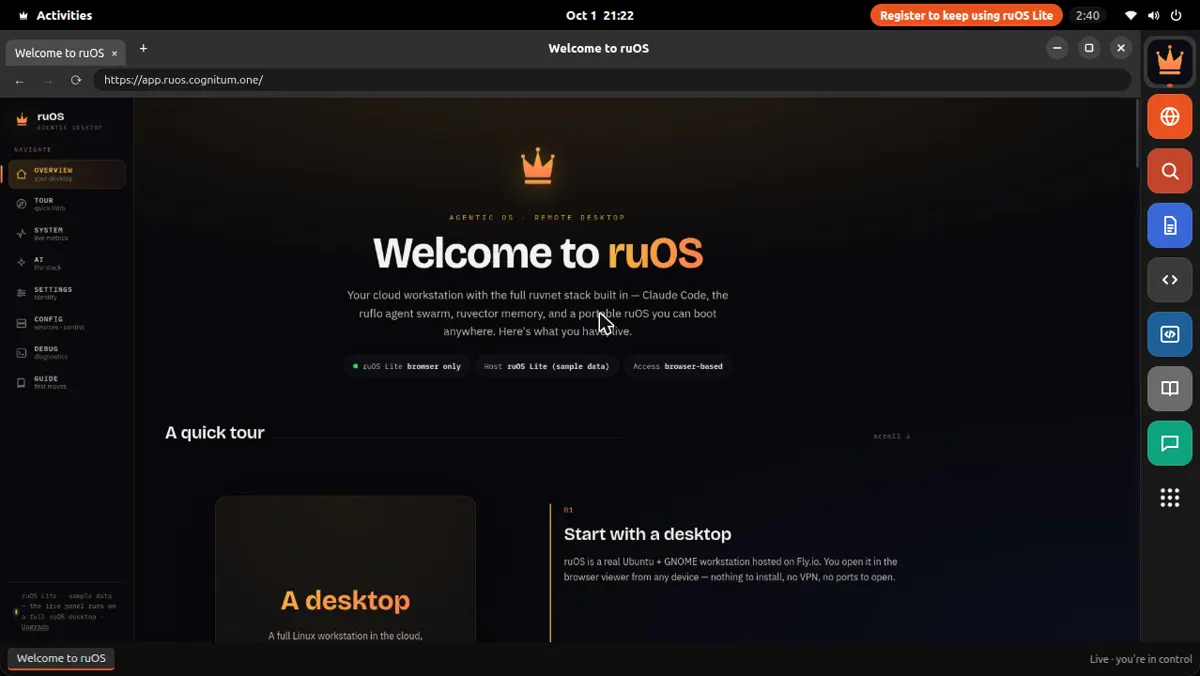
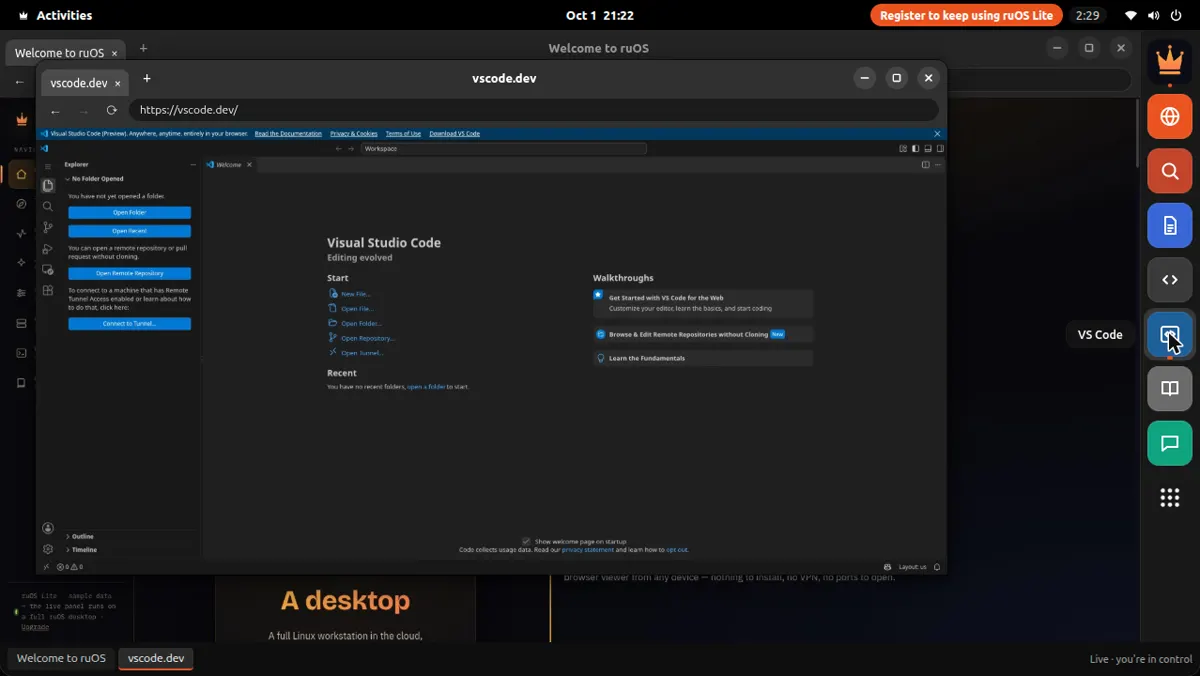
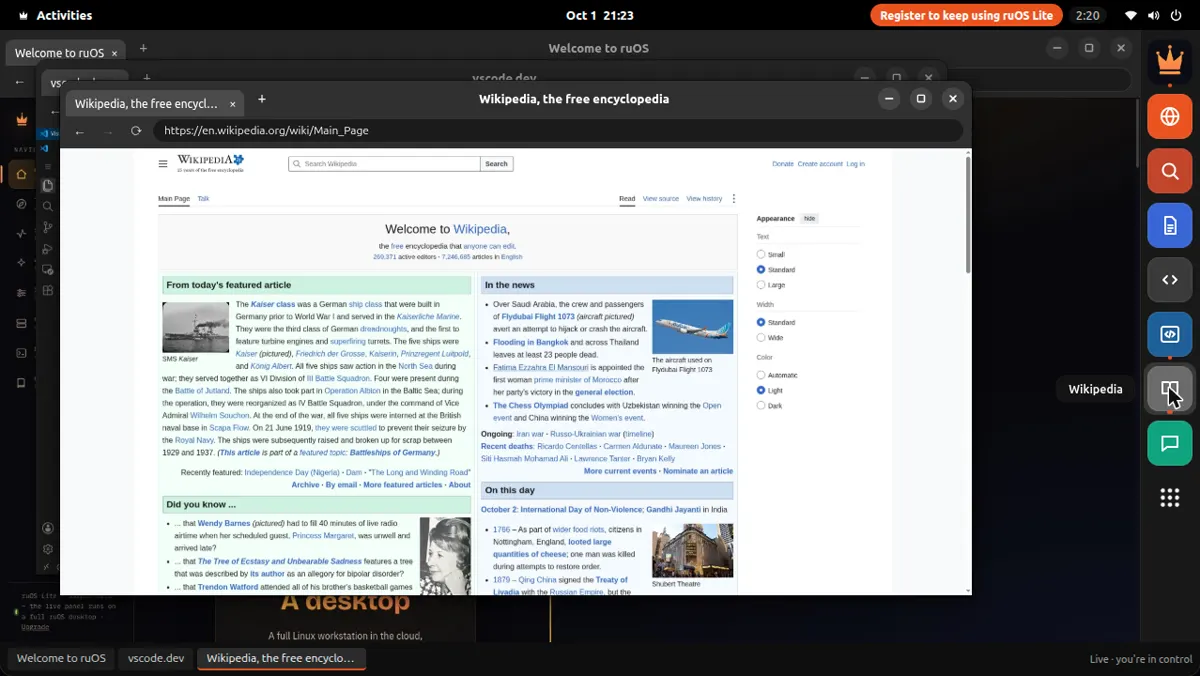
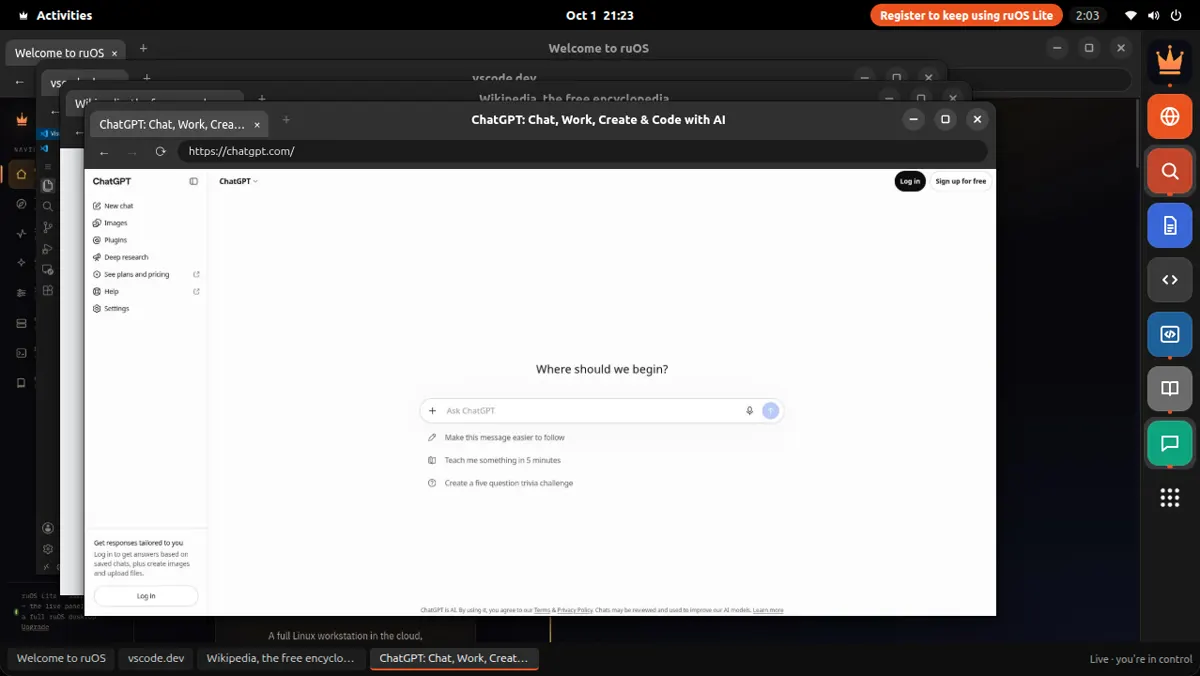
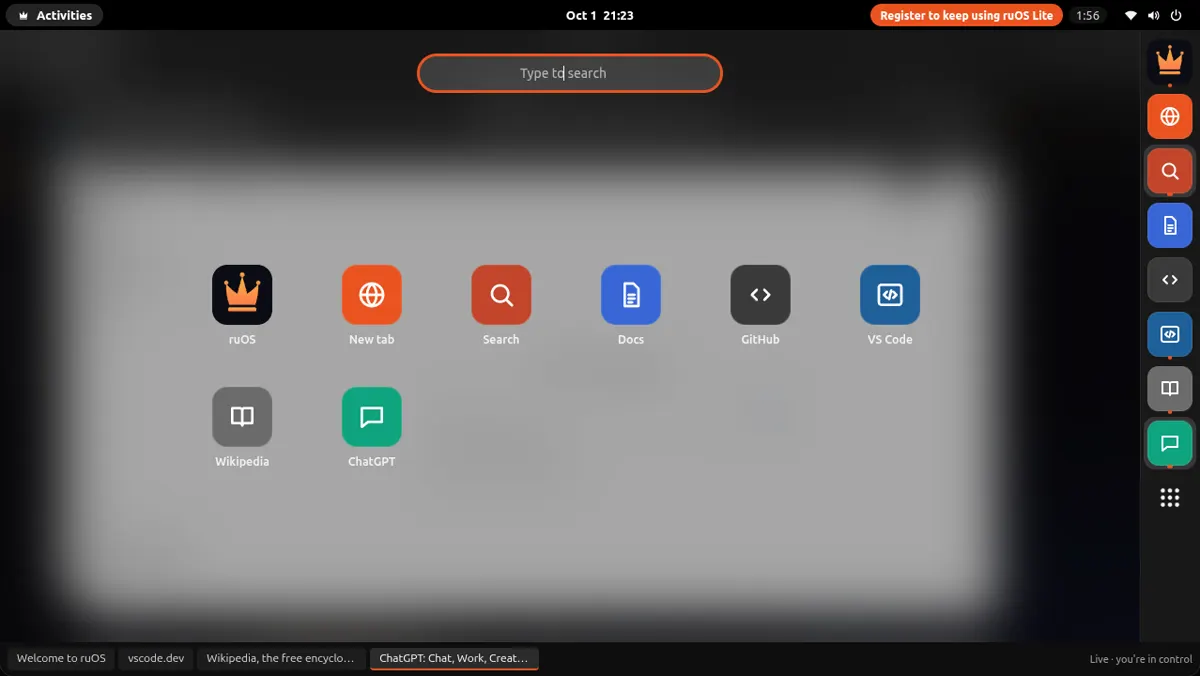
ruOS Lite: the ruOS Welcome app in a browser window on an Ubuntu-style desktop, with a dock of apps on the right ruOS Lite: VS Code for the Web open from the dock ruOS Lite: Wikipedia in a second window, over VS Code ruOS Lite: ChatGPT in a third window, with every open window in the taskbar ruOS Lite: the Activities app grid with ruOS, Search, Docs, GitHub, VS Code, Wikipedia and ChatGPT
Try it live — 3 minutes, no sign-up
  • Opens in about a second. Tabs and windows, a dock of apps, and the ruOS app first.
  • Picks up where you left off. Sign-ins, site data and open tabs are saved, encrypted.
  • VS Code and extensions. vscode.dev in the dock; 1Password, Bitwarden, Claude and uBlock Origin Lite when you turn them on.
  • Your AI can drive it. ChatGPT and Claude see and click it through the ruOS connector — never your extensions, and payments wait for you.
Try ruOS Lite

From sign-up to done — on its own

scroll ↓

Four simple steps: you sign up, your desktop turns on, the AI does the work, and you open it from anywhere.

You sign up

We set up your own private desktop — no setup, nothing to configure.

Starting your desktop…
✓ files loaded   ✓ AI ready
It turns on

Your desktop starts in seconds, with all the AI helpers signed in and ready.

The AI works

A whole team of AI helpers researches, writes, and codes while you watch or step away.

Open anywhere

Your desktop opens in any web browser and fits any screen — Mac, iPad, or laptop.

01

You sign up

Enter your email and we set up your own private agentic desktop, bound to your account. No setup, nothing to configure — it's ready in minutes.

02

Your desktop turns on

A private desktop starts up in seconds, with the whole AI stack preinstalled and signed in — Claude Code, a team of helpers, and self-learning memory, all ready to go.

03

The AI gets to work

Ask for something and it's done. A whole team of AI helpers researches, writes, and codes side by side while you watch — or step away and come back to finished work.

04

Open it anywhere

Your desktop streams to any web browser and reshapes to the screen — the same session on your Mac, iPad, or laptop. Nothing to install, nothing to sync.

That's the whole setup.Sign up once; your desktop does the rest.

Everything's ready the moment you sign in

what you get

Nothing to set up. It all works together from the first minute — so you can just start.

Smart AI helpers, built in

Helpers that write and run code, research on the web, remember your projects, and understand what's on your screen — all working together from day one.

Claude Code ready
writes & runs code for you
ruflo ready
a team of AI helpers
ruvector ready
remembers your work
ruview ready
understands your screen
Codex ready
extra coding help
VS Code ready
the code editor

Any device, just a browser

Open your desktop right in your web browser — on a Mac, iPad, Chromebook, or Linux laptop. Nothing to install, nothing to set up.

Fits any screen

It reshapes to your window the moment you open it — sharp on a big monitor, comfortable on a tablet. No fiddling with zoom.

Always where you left off

Your files and everything the AI has learned are saved automatically. Come back tomorrow and pick up right where you left off — even from a different device.

Yours and private

Your desktop is your own — your files, your work, your AI. Kept separate and private from everyone else's.

Here's what it does for you

what you can do

Simple things you can ask for — and it just does them.

Writes code

It writes and runs code

Tell it what you want changed. It edits the files, runs the tests, and tells you when it's done.

Works as a team

A whole team, at once

It splits a big job across several AI helpers that work side by side.

Remembers

It remembers your projects

It keeps track of what you're working on, so you never explain twice.

Researches

It researches for you

Ask a question and it browses the web, reads the sources, and brings back the answer.

researching…
Goes with you

Pick up on any device

Your whole desktop goes with you — start on your laptop, keep going on your iPad.

OS
Hand it your next job.Research, writing and code, done while you're away.
◇ For developers · power users

Build on ruOS

Under the hood it's a real Linux box with the full ruvnet stack and programmatic control. Everything here is already installed on your desktop — this is what you can wire up once you're in.

Control it with MCP

ruOS runs an MCP server — ruos-computeruse-mcp — so an AI client like Claude can drive the desktop for real: see the screen, move the mouse and type, run shell commands, trigger system actions, and change the resolution on the fly.

screenshot mouse_move / left_click type_text / key (xdotool) run_shell system_action desktop_resolution
point an MCP client at your desktop — stdio over SSHclaude mcp add ruos-desktop -- ssh you@your-ruos-desktop ruos-computeruse-mcp
Resize after launch: desktop_resolution { preset: "1440p" } — presets 720p · 1080p · 1440p · qxga, or a custom width × height, applied server-side via xrandr. Connection is stdio over SSH today; a hosted MCP endpoint is on the roadmap.

The ruvnet stack, one command away

It's all preinstalled. Open a terminal on your desktop and go — these are the same commands the AI helpers run for you.

set up agent-swarm orchestrationnpx ruflo@latest init wizard
spin up a team of AI agentsnpx ruflo@latest swarm init --topology hierarchical
give your agents long-term, self-learning memorynpx ruvector
run the ruflo agent runtimenpx ruflo
Quick start https://ruos.cognitum.one/mcp
  1. ChatGPT
    Settings → Apps & Connectors → Create. Paste the address above and sign in.
  2. Claude
    Settings → Connectors → Add custom connector. Paste the address above and sign in.
  3. Claude Code
    claude mcp add --transport http ruos https://ruos.cognitum.one/mcp
ruos@desktop:~$ ask "start my ruOS desktop"
✓ Work Desktop is running · ready in your browser
ruos@desktop:~$ ask "build the landing page"

Use the access already on your account

account access

ruOS in ChatGPT uses only the desktops and metered entitlements already assigned to your account. The ChatGPT app and its linked review surfaces do not present pricing, checkout, subscriptions, upgrades, or credit purchases.

Early access

Get your own agentic desktop.

Leave your email and we'll send your invite. Your desktop is ready a few minutes after you accept it.

No spam. One invite email, and product updates you can opt out of anytime.